KiCad
Blossom Theme for KiCad
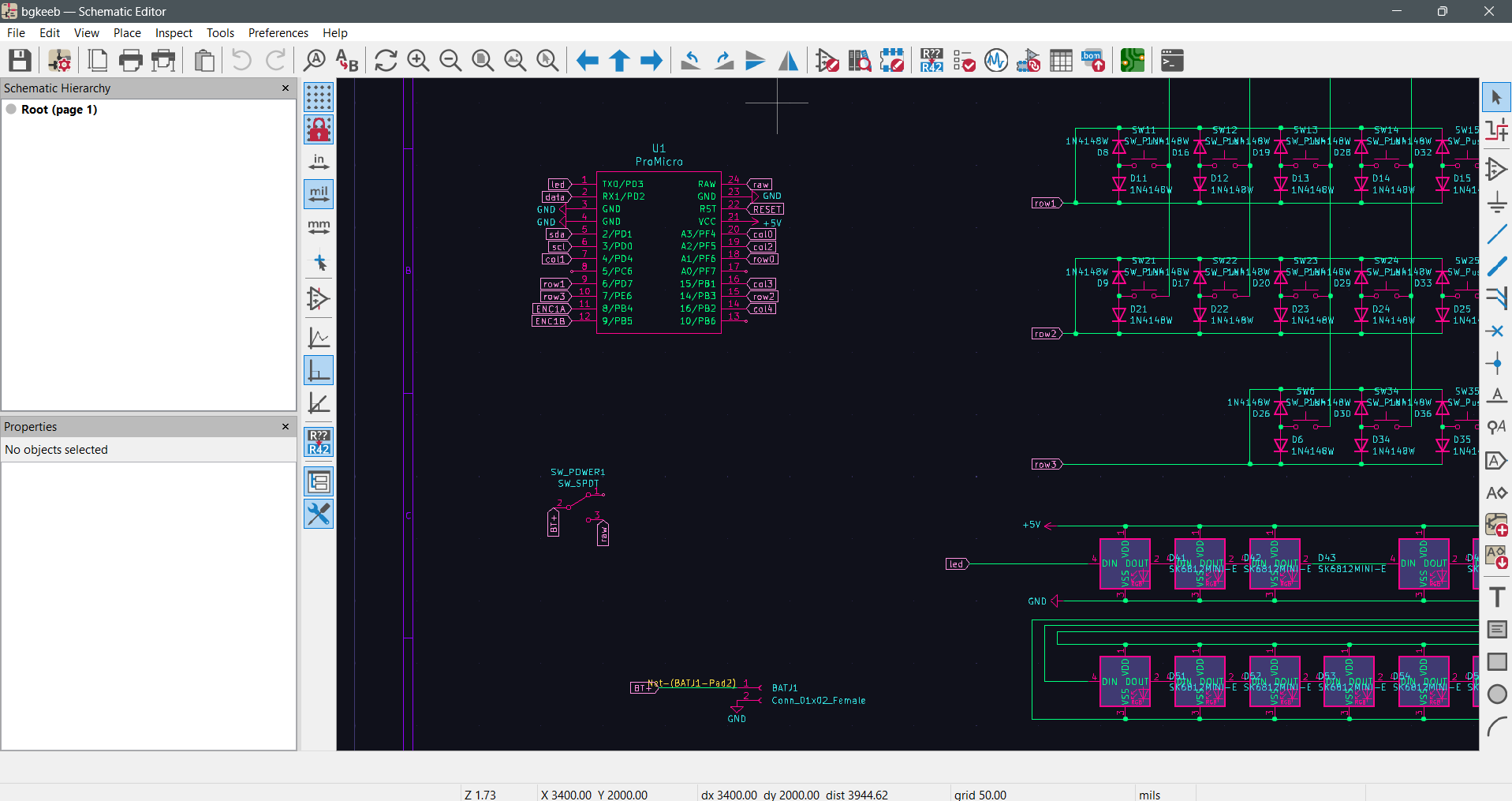
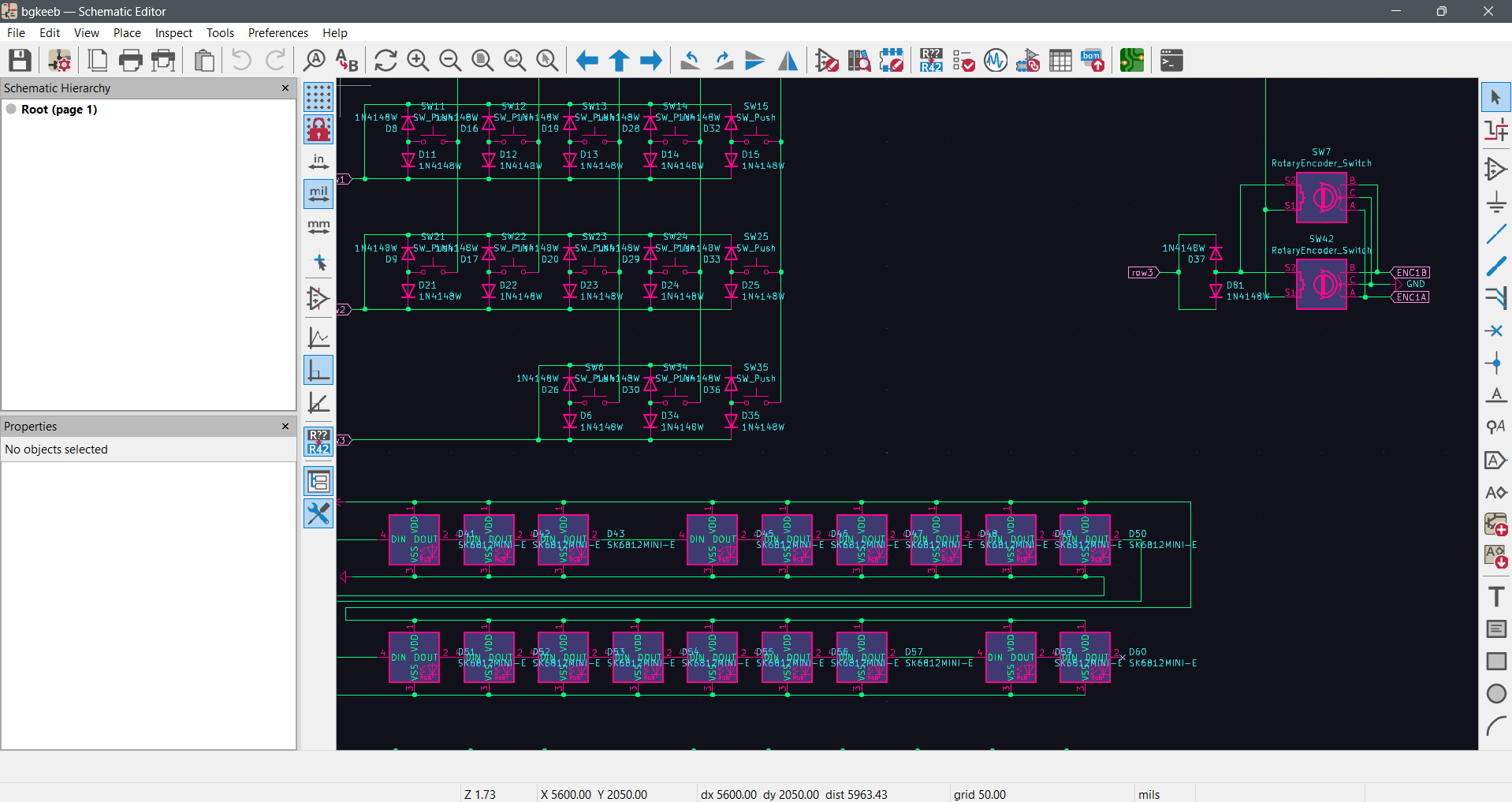
Previews of the theme

Installation
- Locate your KiCad configuration directory:
- Windows:
C:\Users\[YourUsername]\AppData\Roaming\kicad\7.0\colors\(or%APPDATA%\kicad\7.0\colors) - Linux:
~/.config/kicad/7.0/colors/ -
macOS:
~/Library/Preferences/kicad/7.0/colors/ -
Create the colors folder if it doesn't exist:
-
If the
colorsdirectory is not present in your KiCad 7.0 configuration folder, create it manually. -
Copy the theme JSON file:
- Place your
.jsontheme file into thecolorsfolder you located or created in step 1. -
The file name (without the
.jsonextension) will be the name that appears in KiCad's theme list. -
Restart KiCad:
-
Close all KiCad windows completely and reopen the application to ensure the new theme is detected.
-
Select the new theme in each editor:
- Open the Schematic Editor, go to Preferences → Preferences → Schematic Editor → Colors
- In the "Theme" dropdown menu, select your newly installed theme and click OK or Apply
- Repeat this process for other editors:
- PCB Editor: Preferences → Preferences → PCB Editor → Colors
- Symbol Editor: Preferences → Preferences → Symbol Editor → Colors
- Footprint Editor: Preferences → Preferences → Footprint Editor → Colors
Note: Each KiCad editor (Schematic, Symbol, Board, and Footprint editors) can have its own color theme selected independently.
That's It... Enjoy!